Upload Logs
ExpressLink keeps a log of attempted uploads for 30 days.

After clicking on Show Logs in the Navigation Bar, you will see a drop down menu to pick a log date. When you click on the log date, you will see a list of upload attempts. The log will show both successful and failed attempts, with a short description of failed attempts.
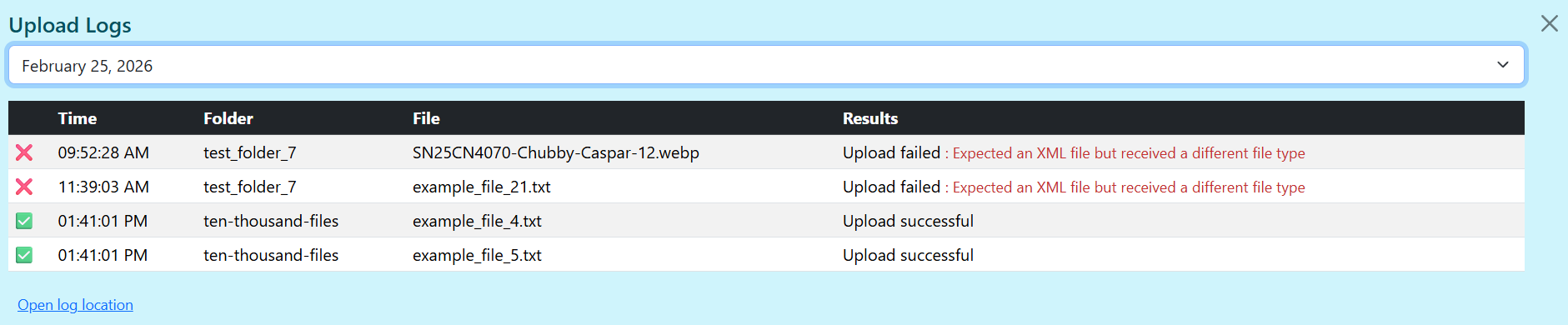
If you want to view the raw logs, you can click on Open log location. Log files can be opened with a text editor like Notepad, by using the ExpressLink Log View app (see below.)
Note: The raw logs will have more detailed information than what is viewable in the ExpressLink app, but will not make much sense to a non-developer.
The log date changes at midnight UTC, which is 7 or 8 hours ahead of California.
- Uploads that happen after 5pm during Daylight Savings Time (spring and summer) will be on the next day's log.
- Uploads that happen after 4pm during Standard Time (fall and winter) will be on the next day's log.
ExpressLink Log Viewer
There is a separate stand-alone app for viewing ExpressLink logs. You can find it on the ExpressLink download page: