Context Menu Uploads
In addition to automatic uploads in watched folders, you can upload files to 1DocStop by right-clicking on the file and choosing Upload with ExpressLink.

Right-click on any file on your computer to see its context menu. Depending on the file type, you may have to click on Show more options at the bottom of the context menu to find the Upload with ExpressLink option.
This works if the ExpressLink app is opened or closed. If ExpressLink is currently not running, uploading with the context menu will open ExpressLink.
Default folder
If ExpressLink is set to upload to one and only one library, ExpressLink will automatically upload to that library.
If ExpressLink is set to upload to more than one library, you will need to tell ExpressLink which library to upload to.
In the example screen shot below, you can see that ExpressLink is set to upload to both the Payroll and the Personnel libraries.

If I try to upload a file using the context menu, I will see an alert box in ExpressLink like the one below:

There are two buttons, one for each library I am currently set up to upload to. Clicking on one of those buttons initiates the upload to the correct libary.
The other option is to choose a default library.
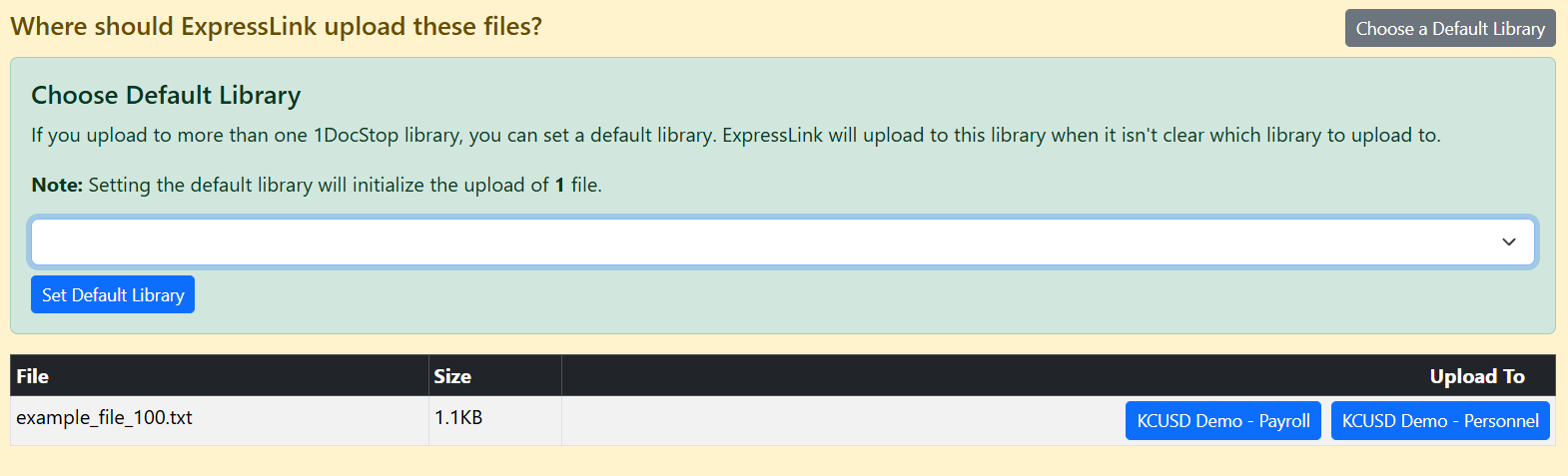
Choosing a default library will apply to the current upload and to future uploads using the context menu. The default library can be changed or cleared in the App Settings.