Settings
ExpressLink has a handful of user-configurable settings, available by choosing Settings from the top Navigation Bar.

After clicking on Settings you should see something like this below:

Minimize on close?
You can choose to have ExpressLink run in the background, by turning on Minimize on close.
When you have this setting on, when you close ExpressLink (for example, by clicking on the "×" on the upper right corner), instead of completely closing, ExpressLink will be moved to the Windows System Tray.

Warn on close?
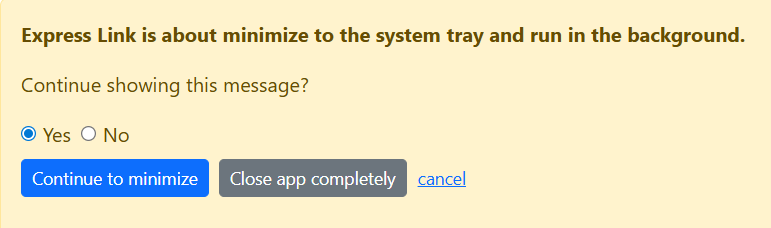
If you have this setting turned on, when you attempt to close ExpressLink, you will see one of the two messages below, depending on what setting you have for Minimize on close.

Load ExpressLink automatically when Windows starts?
Turn on this setting if you want ExpressLink to always load when Windows starts.
Defaul library for uploads:
If you use Context Menu Uploads, ExpressLink needs to know what library to send those uploads to.
If you are only uploading to one library, or don't use Context Menu Uploads, you can ignore this setting.
If you are uploading to more than one library, use this setting to set a default library.
Set new library lets you add or change the default library.
A drop down will appear with a list of libraries that ExpressLink uploads to (based on the folders you are currently wathching)

Clear default library lets you remove the default library without choosing a new one. This is useful if you have multiple libraries you upload to and you want to manually choose each time you upload using the context menu.